
Excel Shortcuts for Financial Modelling: 25 to Learn
Excel Shortcuts for Financial Modelling: 25 to Learn
The Excel shortcuts that matter most in financial modelling are the ones for moving around fast, editing formulas, checking links and formatting numbers. Here are 25 that property analysts use every day. Learn five a week and you will save hours.
The quick version
Shortcuts make you faster and cut errors, because you stay on the keyboard.
Learn them in groups: move, edit, audit, format and speed.
The audit shortcuts help you check other people's models.
The shortcuts below are for Windows. On a Mac, Cmd often replaces Ctrl, and a few differ.
Why do shortcuts matter?
Models are built, checked and changed all day. Every time your hand leaves the keyboard for the mouse, you lose a second and your place. Shortcuts also help you audit. You can trace where a number comes from in a few key presses, which is how errors get caught before somebody else finds them.
The 25 shortcuts
Move and select
Shortcut | What it does |
|---|---|
1. Ctrl + Arrow | Jump to the edge of your data |
2. Ctrl + Shift + Arrow | Select to the edge of your data |
3. Ctrl + Home / Ctrl + End | Go to the first cell, or the last used cell |
4. Ctrl + Page Up / Page Down | Move between sheets |
5. Ctrl + G (or F5) | Go To, and "Special" to find formulas, constants or blanks |
Edit
Shortcut | What it does |
|---|---|
6. F2 | Edit the cell you are in |
7. F4 | Switch between absolute and relative references while editing |
8. Ctrl + Enter | Fill all selected cells with the same entry |
9. Ctrl + D / Ctrl + R | Fill down, or fill right |
10. Alt + Enter | Start a new line inside a cell |
Audit
Shortcut | What it does |
|---|---|
11. Ctrl + ` (backtick) | Show formulas instead of results |
12. Ctrl + [ | Select the cells a formula depends on (precedents) |
13. Ctrl + ] | Select the cells that depend on this cell (dependents) |
14. Alt + = | Insert an AutoSum |
15. F9 | Recalculate, useful when data tables are set to manual |
Format
Shortcut | What it does |
|---|---|
16. Ctrl + 1 | Open the Format Cells box |
17. Ctrl + Shift + 1 | Apply a number format with a thousands separator |
18. Ctrl + Shift + 4 | Apply a currency format |
19. Ctrl + Shift + 5 | Apply a percentage format |
20. Alt, then H, O, I | Autofit the column width |
Speed
Shortcut | What it does |
|---|---|
21. Ctrl + Space | Select the whole column |
22. Shift + Space | Select the whole row |
23. Ctrl + Shift + L | Turn filters on or off |
24. Ctrl + Alt + V | Open Paste Special (then choose values, formats or formulas) |
25. Ctrl + Shift + + / Ctrl + - | Insert, or delete, cells, rows or columns |
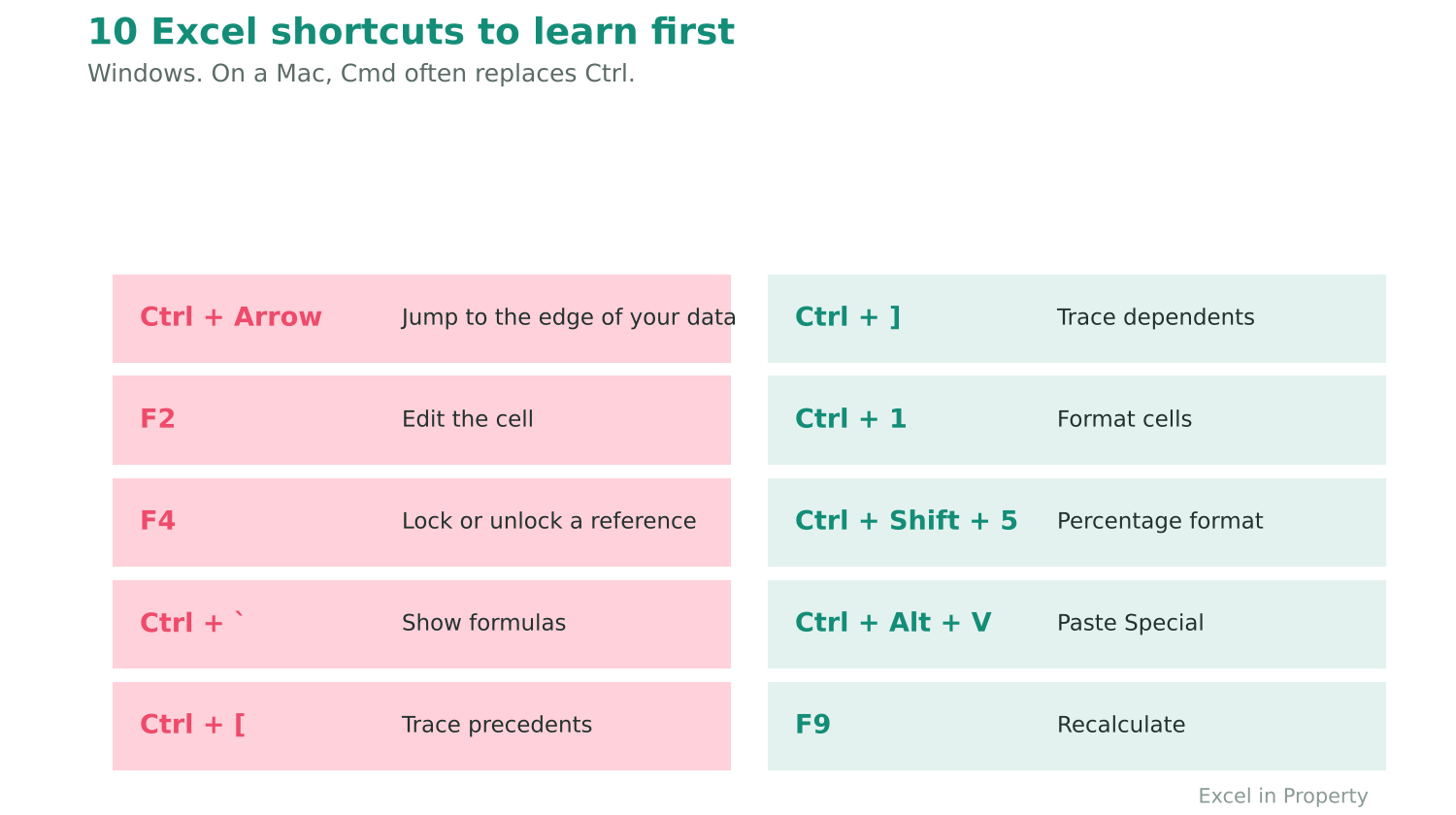
What about Mac shortcuts?
Many Mac shortcuts use Cmd instead of Ctrl. A few differ, for example the key to switch between absolute and relative references. Check Microsoft's list of keyboard shortcuts for your version of Excel.
How do you actually learn them?
Pick five shortcuts a week, not all 25.
Stick a note on your screen and make yourself use them until they are automatic.
Move on to the next five.
Use them while you build real models, not just when practising.
At the end of each week, test yourself on a blank sheet. Each time you reach for the mouse, stop and use the shortcut instead.
Which formulas should you learn next?
Once your hands are fast, the next gains come from formulas. The most useful for property analysts include SUMIFS, INDEX and MATCH, IFERROR, EOMONTH and EDATE for dates, and IRR, XIRR, NPV and XNPV for returns. Learn Goal Seek and data tables for testing, and conditional formatting to make results easy to read. See how to do a sensitivity analysis in Excel.
How do you audit a model in five minutes?
Press Ctrl + ` to show all formulas. Look for cells that break the pattern across a row.
Press Ctrl + G, choose Special, then Constants, to find typed-in numbers hiding among formulas.
Click a key output and press Ctrl + [ to see what it depends on. Repeat to follow the chain back.
Click an input and press Ctrl + ] to see everything that depends on it.
Change a key input, press F9, and check that the totals still match.
Do this on every model you receive, including your own.
Common mistakes
Learning too many at once and remembering none.
Using shortcuts that change the model without checking, such as fill down over a formula range.
Skipping the audit shortcuts, which are the ones that catch errors.
Frequently asked questions
What is the fastest way to learn Excel shortcuts?
Learn a few at a time and use them in real work. Repetition on live models beats memorising a long list.
Do Excel shortcuts work in Excel Online?
Many do, but some are limited by the browser. Test the ones you rely on.
What are the best Excel formulas for real estate analysts?
SUMIFS, INDEX and MATCH, IFERROR, EOMONTH and XIRR cover most of what you need in a property model.
Want to learn how to do this properly?
The Excel Foundations for Real Estate Analysts course includes an Excel shortcuts cheat sheet, a function cheat sheet, the EiP formatting add-in and step-by-step lessons on the formulas above.
Explore the Excel Foundations for Real Estate Analysts course
Join the EiP Academy for all nine courses
New to modelling? Start with the Crash Course
