
Sensitivity Analysis in Excel for Property Deals
Sensitivity Analysis in Excel for Property Deals
A sensitivity analysis shows how a result, such as IRR or profit, changes when you change one or two assumptions. In Excel the usual tool is a data table. Here is how to build one for a property deal, how it differs from scenario analysis, and how to present the results so people actually read them.
The quick version
Sensitivity analysis changes one or two inputs at a time. Scenario analysis changes several inputs together.
Use a two-way data table for pairs such as exit yield and rent growth.
The input cells must be on the same sheet as the data table.
Show the base case clearly and use colour to highlight where a deal stops working.
Scenario analysis or sensitivity analysis?
Sensitivity analysis moves one or two inputs through a range to see the effect on an output. Scenario analysis changes a set of inputs together to tell a believable story, such as a downside case with lower rent growth, higher costs and a weaker exit yield. Use both. Sensitivities show which assumptions matter most, and scenarios show what could plausibly happen.
Which inputs should you test?
Exit yield
Rent growth and void periods
Construction costs and programme (for developments)
Interest rate and loan size
Purchase price
How do you build a two-way data table?
Build your model so one cell shows the result you want, such as IRR.
Make sure the two inputs you want to test (such as exit yield and rent growth) are single cells on the same sheet as the table.
Create the grid. Put the link to your output cell in the top-left corner, the exit yield values across the top row, and the rent growth values down the left column.
Select the whole grid, including the top row and left column.
Go to Data, then What-If Analysis, then Data Table.
Enter the row input cell (the exit yield input) and the column input cell (the rent growth input). Click OK.
Sensitivity analysis example
An unlevered five-year UK deal: purchase at £10,000,000, purchaser's costs of 6.8%, first-year NOI of £650,000 and selling costs of 1.5%. The base case is 2% rent growth and a 6.5% exit yield, which gives an IRR of 6.6%. The table shows IRR as exit yield and rent growth change. These figures are illustrative.
Rent growth ↓ / Exit yield → | 5.5% | 6.0% | 6.5% | 7.0% | 7.5% |
|---|---|---|---|---|---|
0% | 7.6% | 6.1% | 4.7% | 3.4% | 2.2% |
1% | 8.6% | 7.1% | 5.7% | 4.4% | 3.2% |
2% | 9.7% | 8.1% | 6.6% | 5.3% | 4.2% |
3% | 10.7% | 9.1% | 7.6% | 6.3% | 5.1% |
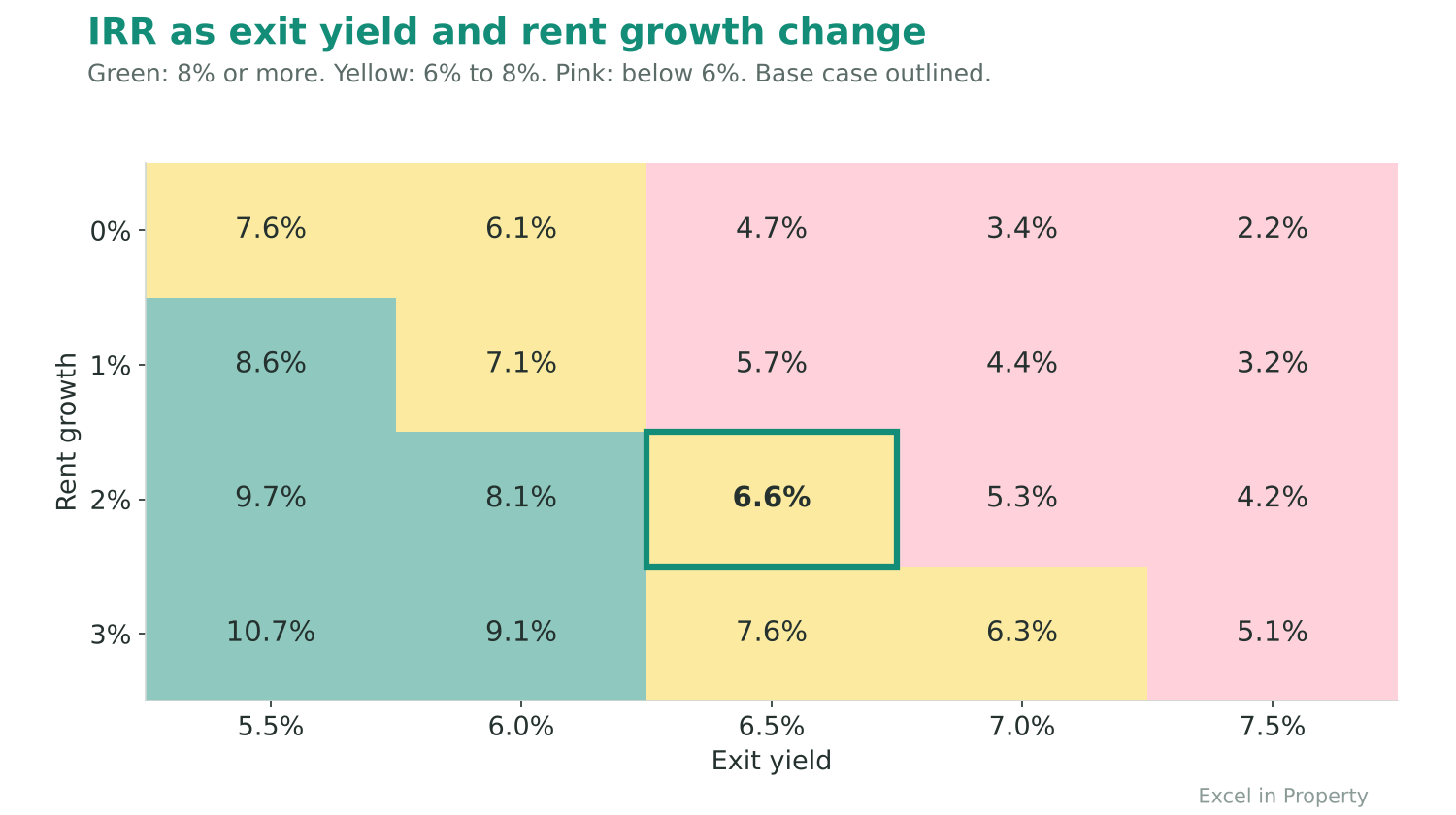
Reading it: each half a percentage point of exit yield moves IRR by about one and a quarter to one and a half points, and each extra 1% of rent growth adds about one point. If your target return is 8%, the table shows you need either a lower exit yield or stronger rent growth than the base case.
How do you set up scenarios?
Create a table with one column per scenario (base, downside, upside) and one row per input.
Add a scenario number cell, such as 1, 2 or 3.
Pick the live input with a formula, for example =CHOOSE(ScenarioNumber, Base, Downside, Upside)
Run the model for each scenario and paste the results into a summary table.
How do you find the break-even point?
Use Goal Seek (Data, What-If Analysis, Goal Seek). For example, ask Excel to change the exit yield until the IRR equals your minimum return. The answer tells you how much room you have before the deal stops working. You can also set the IRR to 0% and report the gap between the base case and that break-even exit yield as your margin of safety.
Which assumption matters most?
A tornado chart ranks inputs by how far they move the result. Using our example (base IRR 6.6%), here is the effect of moving each input one at a time. The ranges differ, so compare them with care.
Year 1 NOI, down or up 10%: IRR from 4.2% to 8.9% (a swing of 4.8 points).
Exit yield, 7.0% to 6.0%: IRR from 5.3% to 8.1% (a swing of 2.7 points).
Purchase price, up or down 5%: IRR from 5.5% to 7.9% (a swing of 2.4 points).
Rent growth, 1% to 3%: IRR from 5.7% to 7.6% (a swing of 2.0 points).
Selling costs, 2.5% to 0.5%: IRR from 6.5% to 6.8% (a swing of 0.4 points).
Income and exit yield matter most here, and selling costs barely matter. That tells you where to spend your time on due diligence.
How should you present the results?
Show the base case first and mark it clearly.
Use conditional formatting to colour results against a target.
Use a tornado chart to rank which inputs move the result most.
Explain in one sentence what each table says.
How do you keep it honest?
Change one thing at a time, unless you are building a scenario.
Use realistic ranges, not tiny ones that make the deal look safe.
Show the downside as prominently as the upside.
Say what you have not tested.
Common mistakes
Data tables recalculating slowly. If your model is large, set calculation to "Automatic except for data tables" and press F9 when you need them.
Input cells on a different sheet, which makes the table return the same number in every cell.
Hard-coded values in the model instead of links to the input cells.
Testing too many variables, so nobody can see what matters.
Not saying what the base case is.
Frequently asked questions
Can you use a data table across different sheets?
The input cells must be on the same sheet as the data table. If your inputs sit elsewhere, create a control cell on the table's sheet and link the model input to it.
What is a tornado chart?
A bar chart that ranks inputs by how much they move the result, with the biggest bar at the top.
How many inputs should I test?
Just the few that matter most, usually yield, rent or price, cost and timing. A table anyone can read beats one with ten variables.
Want to learn how to do this properly?
The Analysis: Scenarios and Sensitivities course covers scenarios, sensitivities and data tables. The Excel Foundations course teaches the Goal Seek and data table tools.
Join the EiP Academy for all nine courses
